
Thunderbird is a friendly email client software for managing your email. You can set up a cPanel email account with Mozilla Thunderbird and receive/send the email.
1. Open Mozilla Thunderbird.

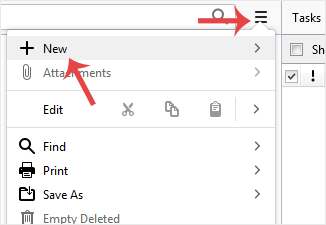
2. Click on the menu icon located on the right side of the screen and choose New. A drop box will open.
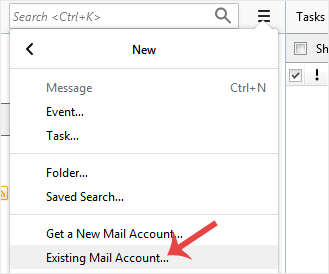
3. Click on Existing Mail Account.
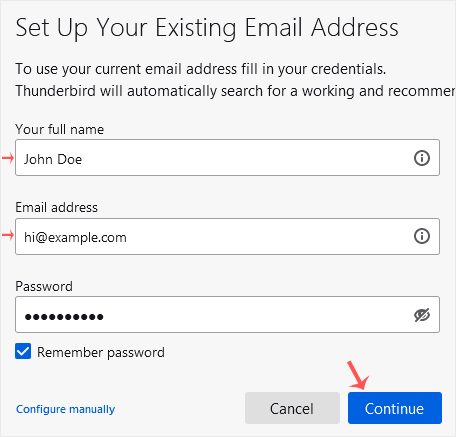
4. In the Mail Setup Account, fill out your name, full email address, and your email account password. Proceed with Continue.
5. It may take a few minutes to configure your email account. After that, click on Done.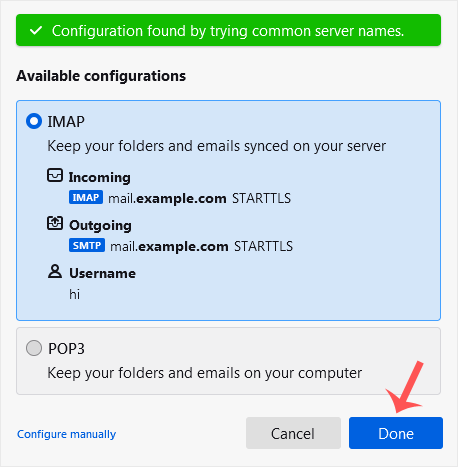
6. If it shows an SSL Security Exception, click on Confirm Security Exception and the warning will disappear.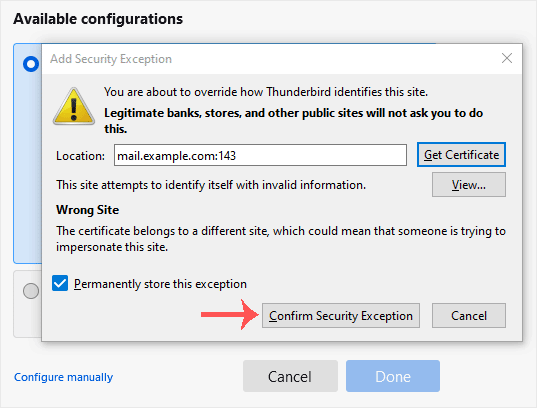
Congratulations, your email is set up successfully. You can now manage your email through Mozilla Thunderbird.
- Home
-
Store
- Browse All
- Shared Linux Hosting
- Shared Windows Hosting
- VPS Hosting India
- Microsoft 365 Email Solution
- Google Workspace Email Solution
- Business Email Solution
- Enterprise Email Solution
- Office 365 Enterprise Email
- VPS Hosting USA SSD
- SSL Certificates
- Weebly Website Builder
- CodeGuard
- SiteLock
- Email Spam Filtering
- Software
- ZOHO MAIL
- SSL Certificates
- Website Builder
- Website Backup
- Website Security
- E-mail Services
- Register a New Domain
- Transfer Domains to Us
- Announcements
- Knowledgebase
- Network Status
- Affiliates
- Contact Us
-
More
